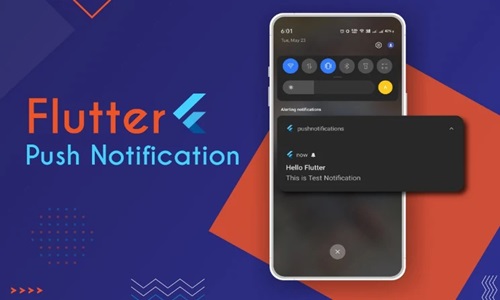
Push notifications allow developers to send updates, reminders, or personalized messages to users even when the app is not open. However, implementing this feature in Flutter requires a series of steps and considerations to ensure a smooth experience. Below are key tips to guide you through the process of integrating push notifications seamlessly in a Flutter project.
Firebase Cloud Messaging (FCM) is the most commonly used solution because it provides a free and comprehensive service for sending notifications across platforms, including iOS and Android. Setting up FCM for your Flutter project is fairly straightforward, as it is already well-integrated with the Firebase SDK. FCM allows sending both data and notification messages, giving developers flexibility depending on the use case.
After choosing a service like FCM, the next step is configuring your project. For Android, you need to add the Firebase SDK to your Flutter app, which involves modifying certain files like the build.gradle files. You also need to add the google-services.json file, which is essential for communicating with Firebase. For iOS, you’ll need to modify certain configurations in Xcode and add a GoogleService-Info.plist file, which is the iOS counterpart of the Android JSON file. Find the iOS setup guide here. It is essential to properly configure both platforms, as any misconfiguration could lead to failed notifications.
One of the common challenges with push notification integration in Flutter is managing platform-specific permissions. Both iOS and Android require explicit permission from users before sending notifications. For Android, permissions are usually granted during the installation of the app, but for iOS, users must opt-in after the app is installed. Managing permissions in iOS can be tricky, especially since iOS 13 introduced new prompts asking users if they want to receive notifications. To ensure a smooth user experience, it is best to request notification permissions at a relevant point in the user journey, such as after onboarding or upon performing an action that would require notifications. Flutter provides packages like permission_handler to manage permissions, making it easier to handle both platforms effectively.
Another key tip for integrating push notifications seamlessly is handling notification payloads properly. Push notifications contain different payloads depending on whether they are being sent as data or notification messages. Data messages allow more control over what the app does when a notification is received, but they require the app to be running, even in the background. Notification messages, on the other hand, are handled by the system and are used for delivering simple alerts. It is essential to decide which type of message to use based on the app’s needs. For example, if you are sending real-time updates that require immediate action, data messages might be better suited. However, if you simply want to notify users of new content, notification messages are sufficient.
Handling push notifications when the app is in the foreground, background, or terminated state requires special attention. By default, notifications may not be shown if the app is in the foreground, as many notification systems assume that the app will handle the notification directly. In Flutter, you can use packages like flutter_local_notifications to display notifications even when the app is running. This allows you to customize how the app behaves depending on its state. Additionally, handling notifications when the app is in the background or terminated involves ensuring that notifications are processed correctly and that the user can interact with them in a meaningful way. This could include deep linking to specific parts of the app or performing background tasks based on the notification data.
To further improve the user experience, it is important to personalize push notifications. Personalized notifications tend to have higher engagement rates because they are relevant to the user’s interests or actions within the app. Personalization can include using the user’s name, sending notifications based on their behavior in the app, or even segmenting users by location or preferences. Firebase offers built-in support for targeting notifications to specific user segments, allowing for more customized and relevant messaging. Another way to personalize notifications is by allowing users to choose the type of notifications they want to receive, such as promotional messages, updates, or reminders. This gives users more control and reduces the likelihood of them disabling notifications altogether.